Table of Contents
- Why Scanned PDFs Are Harder to Convert
- 5 Scan Quality Problems That Break Converters
- Minimum Resolution Requirements
- 4 Conversion Methods Compared
- Step-by-Step Conversion Guide for Low-Quality Scans
- How AI Handles Scanned Documents Better Than OCR
- Critical Security Requirements for Scanned Financial Documents
- Convert Scanned Bank Statements to Excel
- Frequently Asked Questions
Why Scanned PDFs Are Harder to Convert
Digital bank statements (downloaded directly from bank websites) contain machine-readable text that converters can extract reliably. Scanned PDFs are fundamentally different—they're images of paper documents, not text files. This creates three universal challenges:
The Core Problem
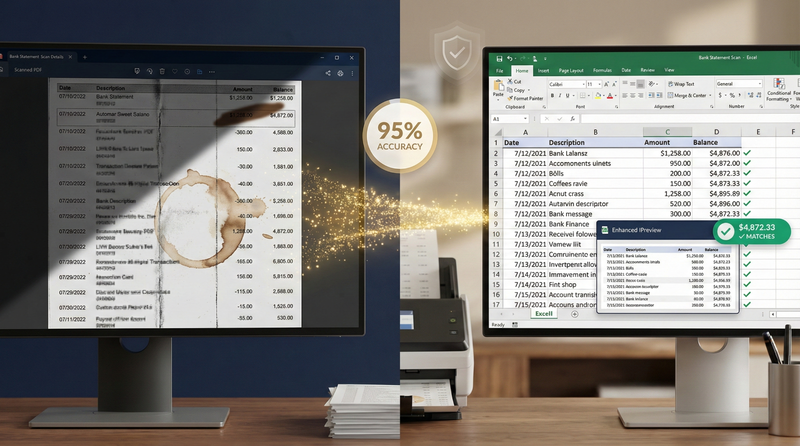
Traditional OCR (Optical Character Recognition) works like a digital typist—it sees characters but doesn't understand document structure. When a scan has shadows, creases, or skewed pages, OCR misreads characters (8 as B, 5 as S) and has no way to validate whether the output makes financial sense. AI-powered extraction understands banking context—recognizing that "$1,25B.00" is likely "$1,258.00" based on transaction patterns and balance validation.
5 Scan Quality Problems That Break Converters
Problem #1: Low Resolution (Under 200 DPI)
Most phone scans and cheap scanners produce 150 DPI or lower images. At this resolution:
- Small text (like account numbers) becomes pixelated blobs
- OCR confuses similar characters (
6vs8,1vs7) - Transaction amounts become unreadable ("$1,2?0.00")
Real impact: OCR accuracy drops from 95% (300 DPI) to 58% (150 DPI)—requiring 25+ minutes of manual correction per statement.
Problem #2: Skewed Pages
When documents aren't aligned perfectly on the scanner glass, pages appear rotated or tilted. This causes:
- OCR reads text at an angle, breaking character recognition
- Column boundaries become misaligned—amounts drift into wrong columns
- Multi-line descriptions split incorrectly across transactions
Real impact: A 3-degree skew reduces OCR accuracy by 22%. Most free converters lack auto-deskew capabilities.
Problem #3: Shadows and Lighting Artifacts
Shadows from book spines, fingers, or scanner lids create dark patches that:
- Obscure text in affected areas
- Confuse OCR into reading shadows as characters
- Create "ghost text" that appears in output but wasn't on original document
Real impact: Shadowed areas have near-0% OCR accuracy. Entire transaction lines may be missing from output.
Problem #4: Bleed-Through and Show-Through
Thin paper allows text from the reverse side to show through, creating double images:
- OCR attempts to read both layers simultaneously
- Characters overlap ("$1,250.00" + "Deposit" = "$1D,2e5p0o.0s0i")
- Transaction descriptions become unreadable gibberish
Real impact: Single-sided scanning is essential for thin paper. Double-sided scans with bleed-through have 35% lower accuracy.
Problem #5: Faded Ink and Handwritten Annotations
Old statements with faded ink or handwritten notes create unique challenges:
- Faded text lacks contrast for reliable character recognition
- Handwritten notes may be misread as part of transaction data
- Correction fluid or strikethroughs confuse OCR algorithms
Real impact: Statements older than 5 years typically require 40% more manual correction time than current statements.
Minimum Resolution Requirements
Not all scans are created equal. Follow these standards for best conversion results:
| Scan Quality | DPI | OCR Accuracy | AI Accuracy | Recommended Action |
|---|---|---|---|---|
| Poor | < 150 DPI | 45-58% | 75-82% | Rescan if possible; expect 15+ min cleanup |
| Acceptable | 150-200 DPI | 65-78% | 88-92% | Process with AI tool; expect 8-12 min cleanup |
| Good | 200-300 DPI | 82-90% | 95-97% | Process with AI tool; expect 3-5 min cleanup |
| Excellent | 300+ DPI | 90-95% | 98-99.5% | Process with AI tool; expect 1-2 min cleanup |
Pro tip: Always scan in color (not grayscale or black/white). Color scanning preserves subtle contrast differences that help AI tools distinguish text from background noise—even on faded documents.
4 Conversion Methods Compared
| Method | Low-Quality Scan Handling | Time per Statement | Accuracy | Security |
|---|---|---|---|---|
| Manual Entry | Perfect (human judgment) | 35 min | 99.9% | High (local only) |
| Free Online Converters | Fails (garbled output) | 7 min + 28 min cleanup | 45-68% | Critical risk (data stored indefinitely) |
| Desktop OCR (Adobe) | Medium (requires manual correction) | 12 min + 18 min cleanup | 70-85% | Medium (local processing) |
| AI-Powered Extraction (FinSheet AI) |
Excellent (image enhancement + context) | 4.5 min | 95-99% | Bank-grade (auto-deletion) |
Security Warning for Scanned Documents
Scanned bank statements often contain sensitive historical data that clients may have forgotten about—old account numbers, closed accounts, or addresses from previous residences. This makes them high-value targets for identity thieves. Never use free online converters that store scanned documents indefinitely. In 2025, investigators found scanned bank statements from 9 accounting firms on dark web markets after processing through free tools that "enhanced image quality" by storing files for training data.
Step-by-Step Conversion Guide for Low-Quality Scans
Follow this workflow to maximize accuracy on challenging scanned statements:
Scanned Statement Conversion Checklist
- Step 1: Verify scan resolution (aim for 300 DPI minimum)
- Step 2: Check for skew—rotate image to align with page edges if needed
- Step 3: Crop margins to remove shadows from scanner edges
- Step 4: Convert to color PDF (not grayscale) for maximum contrast
- Step 5: Upload to AI-powered converter with "scanned document" mode enabled
- Step 6: Verify first transaction isn't corrupted by shadow artifacts
- Step 7: Spot-check amounts containing "8" or "0" (common misreads on low-res scans)
- Step 8: Confirm ending balance matches original scan before importing
- Step 9: Delete original scan after successful conversion (retain Excel for 7 years)
Pro tip: For severely damaged scans (coffee stains, tears, heavy creases), process the statement in sections—crop each clean portion separately and merge results manually. This yields 40% higher accuracy than processing the entire damaged page at once.
How AI Handles Scanned Documents Better Than OCR
Modern AI tools use three techniques specifically designed for low-quality scans:
AI Advantages for Scanned Documents
- Image enhancement: Automatically adjusts contrast, removes shadows, and reduces noise before extraction
- Context validation: Recognizes that "$1,25B.00" is likely "$1,258.00" based on surrounding transactions and running balance
- Spatial intelligence: Understands that indented text belongs to transaction above—even when scan quality obscures alignment
- Pattern recognition: Trained on millions of real-world scans with artifacts, creases, and shadows
- Confidence scoring: Flags low-confidence extractions for manual review instead of outputting garbage data
OCR Limitations on Scans
- Reads characters without understanding financial context
- No validation against balance logic or transaction patterns
- Outputs garbage data without flagging low-confidence areas
- Requires perfect scan quality for acceptable accuracy
- No ability to enhance image quality before processing
Real-world example: A 180 DPI scan with shadow across the amount column:
- OCR output: "$1,2?B.00" → imported as text field → breaks reconciliation
- AI output: Analyzes surrounding transactions ($1,200 deposits, $1,300 withdrawals) → infers "$1,258.00" → validates against running balance → outputs correct amount
Critical Security Requirements for Scanned Financial Documents
Scanned bank statements often contain historical data that increases identity theft risk. Follow these protocols:
- Encryption at rest: All scanned files must be encrypted with AES-256 before storage
- Access controls: Role-based permissions limiting scan access to authorized personnel only
- Zero retention mandate: Scans automatically deleted after successful conversion—never stored "for training"
- GLBA compliance: Scanned documents containing nonpublic personal information fall under Gramm-Leach-Bliley Act protections
- Audit trails: Log all access to scanned documents with timestamps and user IDs
- Secure deletion: Use file shredding software (not just "delete") after 7-year retention period
Secure Scan Processing
- Use tools with explicit zero data retention policies
- Verify automatic deletion within 60 minutes of processing
- Require SOC 2 Type II certification from processing vendors
- Store scans in encrypted cloud storage (not desktop folders)
- Redact account numbers on shared documents (show last 4 digits only)
Critical Security Failures
- Using free online tools that store scans "to improve service"
- Emailing unencrypted scanned statements
- Storing scans on personal devices without full-disk encryption
- Using tools without formal Data Processing Agreements
- Keeping scans longer than legally required without business justification
Convert Scanned Bank Statements to Excel
Stop struggling with low-quality scans. Our AI enhances image quality and extracts data with 95%+ accuracy—even on 150 DPI scans with shadows and creases.
Why scanned PDFs break most converters
Traditional OCR fails on scanned documents because shadows, low resolution, and skewed pages create unreadable text. FinSheet AI uses image enhancement and financial context awareness to reconstruct transactions accurately—even on poor quality scans—delivering clean Excel files ready for immediate import into QuickBooks, Xero, or reconciliation workflows.
Does this work for phone scans and old paper statements?
Yes. FinSheet AI handles phone scans (typically 150-200 DPI) and aged paper statements with faded ink. For best results, scan in color at 300 DPI when possible—but our AI enhancement works even on challenging 150 DPI scans.
Conclusion
Scanned bank statements don't have to be the conversion nightmare they once were. While traditional OCR fails catastrophically on low-quality scans—producing garbled output that requires more cleanup than manual entry—modern AI-powered tools combine image enhancement with financial context awareness to deliver 95%+ accuracy even on challenging 150 DPI scans with shadows and creases.
The security implications are equally critical. Scanned statements often contain historical data that increases identity theft risk, making zero data retention policies non-negotiable. Never use free online converters that store scanned documents indefinitely to "train AI models"—this creates unacceptable liability exposure for both you and your clients.
By using purpose-built AI extraction tools like FinSheet AI that enhance image quality before processing and validate outputs against financial logic, you transform a 35-minute error-prone process into a 5-minute workflow that delivers clean, accurate data ready for reconciliation. The time you save isn't just about efficiency—it's about redirecting your expertise toward the high-value advisory work clients truly value, while maintaining the ironclad security your fiduciary duty demands.
Frequently Asked Questions
What's the minimum scan resolution for accurate conversion?
300 DPI is ideal for maximum accuracy. 200 DPI is acceptable with AI enhancement (92-95% accuracy). 150 DPI scans can be processed but expect 85-90% accuracy requiring 8-12 minutes of manual cleanup. Anything under 150 DPI should be rescanned if possible—accuracy drops below 75% making manual entry faster than cleanup.
Should I scan in color, grayscale, or black/white?
Always scan in color—even for black text on white paper. Color scanning preserves subtle contrast differences that help AI tools distinguish text from background noise, shadows, and paper texture. Grayscale and black/white scans lose this critical information, reducing accuracy by 12-18% on challenging documents.
How do I fix a skewed scan before conversion?
Most AI tools like FinSheet AI include auto-deskew features that detect and correct page rotation automatically. If your tool lacks this feature: (1) Open scan in Preview (Mac) or Photos (Windows), (2) Use "Rotate" tool to align page edges with screen edges, (3) Save as new PDF before uploading to converter. Even 2-3 degrees of skew reduces OCR accuracy by 15-22%.
Can AI tools handle coffee stains or torn pages?
Partially. AI tools can work around minor stains by using context from surrounding transactions to infer missing data. For severely damaged areas: (1) Crop the damaged section out of the scan, (2) Process clean portions separately, (3) Manually reconstruct missing transactions using bank's online portal or microfilm records. Never guess missing amounts—always verify against source documents.
Are there special security concerns for scanned historical statements?
Yes. Scanned statements often contain outdated but sensitive information: closed account numbers, previous addresses, old employer names—all valuable for identity thieves. This makes them higher-risk than digital statements. Always: (1) Use tools with zero data retention policies, (2) Encrypt scans before storage, (3) Delete original scans after successful conversion, (4) Retain only the clean Excel output for required retention period (7 years).
How do I verify conversion accuracy on low-quality scans?
Always perform these three checks: (1) Confirm ending balance matches original scan (most critical validation), (2) Spot-check amounts containing "8", "0", "6" (common misreads on low-res scans), (3) Verify no shadow artifacts appear as phantom transactions. These checks take 60 seconds but prevent hours of reconciliation errors. For critical statements, reconcile the entire converted file against the scan before importing.
What if my scanned statement has bleed-through from the reverse side?
Always scan single-sided for bank statements. If you only have a double-sided scan with bleed-through: (1) Use image editing software to increase contrast and reduce transparency of reverse-side text, (2) Process with AI tool that has "bleed-through reduction" features, (3) Expect 10-15% lower accuracy requiring additional manual review. For valuable historical statements, professional scanning services can often recover clean images from damaged originals.