Table of Contents
- Why Reconciliation Matters More Than You Think
- The 7-Step Reconciliation Workflow (2026)
- 5 Costly Reconciliation Errors (and Fixes)
- How Automation Cuts Reconciliation Time by 50%
- Handling Outstanding Items Correctly
- Security Requirements for Reconciliation Data
- Streamline Reconciliation with Clean Data
- Frequently Asked Questions
Why Reconciliation Matters More Than You Think
Bank reconciliation isn't just a compliance checkbox—it's your financial immune system. Done properly, reconciliation catches:
What Reconciliation Protects Against
- Fraud detection: Unauthorized transactions, duplicate payments, altered amounts
- Bank errors: Incorrect deposits, fees charged to wrong accounts, processing mistakes
- Bookkeeping errors: Transposed numbers (e.g., $152 vs $125), missed transactions, duplicate entries
- Cash flow blind spots: Uncleared checks creating false cash position
- Tax exposure: Unrecorded income or expenses that impact tax liability
Yet 68% of small businesses perform reconciliations monthly or less frequently—creating dangerous gaps where errors compound. The most successful accounting firms reconcile weekly or even daily for high-volume clients, catching problems before they become crises.
The 7-Step Reconciliation Workflow (2026)
Follow this proven workflow for accurate, efficient reconciliations every time:
Step 1: Gather Your Documents
- Download the official bank statement (PDF) directly from the bank's website—not from email attachments which could be tampered with
- Pull your accounting software's transaction report for the same period
- Collect any outstanding checks or deposits in transit from your records
- 2026 Best Practice: Use AI-powered tools to convert PDF statements to clean Excel files before starting reconciliation—eliminating 80% of data entry errors upfront
Step 2: Verify Starting Balances
- Confirm your accounting software's ending balance from the previous period matches the bank statement's starting balance
- If they don't match, stop immediately—don't proceed until you resolve the prior period discrepancy
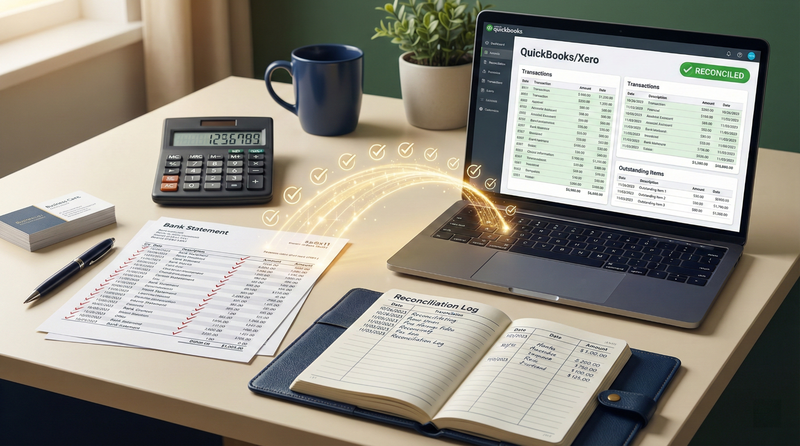
- Pro Tip: Maintain a reconciliation log tracking starting/ending balances for each period—critical for audit trails
Step 3: Match Cleared Transactions
- Work chronologically through the bank statement
- Check off each transaction that appears identically in your books
- Pay special attention to transaction dates—deposits may clear on different days than recorded
- 2026 Automation: Use accounting software rules to auto-match recurring transactions (payroll, rent, utilities) before manual review
Do This
- Match by amount AND description
- Verify exact dates for high-value items (> $1,000)
- Flag anything over $1,000 for extra review
- Use color coding for different transaction types
Don't Do This
- Match amounts only without verifying descriptions
- Assume small differences will "even out later"
- Reconcile without reviewing each transaction
- Use bank feeds without verifying initial setup
Step 4: Identify Outstanding Items
- List checks written but not yet cleared the bank
- List deposits made but not yet reflected in the bank balance
- Calculate the adjusted bank balance: Ending Balance + Deposits in Transit - Outstanding Checks
- Critical: Investigate any outstanding item older than 60 days—could indicate lost checks or unrecorded deposits
Step 5: Investigate Discrepancies
- If adjusted balances don't match, investigate immediately
- Common culprits: transposed numbers (e.g., $152 vs $125), missed transactions, duplicate entries
- For differences under $1: Check for bank fees or interest not yet recorded
- For differences over $100: Review every transaction individually
- 2026 Tool: Use Excel's conditional formatting to highlight unmatched transactions instantly
Step 6: Document Your Work
- Save a PDF of the completed reconciliation with your initials and date
- Note any unusual items or adjustments made
- Document the reason for any outstanding items over 60 days old
- Audit Requirement: IRS and GAAP require reconciliation documentation for 7 years minimum
Step 7: Review and Approve
- Have a second person review high-risk accounts (payroll, operating)
- For your own practice: Review reconciliations before delivering financials to clients
- Never mark an account "reconciled" with an outstanding difference
- 2026 Best Practice: Implement digital approval workflows with timestamped signatures
Reconciliation Quality Checklist
- Starting balances match prior period ending balances
- All cleared transactions matched by amount AND description
- Outstanding items documented with dates and amounts
- Adjusted book balance = Adjusted bank balance
- All bank fees and interest recorded in books
- Reconciliation saved with preparer name and date
- Second review completed for high-risk accounts
5 Costly Reconciliation Errors (and Fixes)
Error #1: Transposed Numbers
Example: Recording $1,520 instead of $1,250 creates a $270 difference
Fix: Divide the difference by 9. If it divides evenly (270 ÷ 9 = 30), you likely have a transposition error. Search for amounts containing those digits.
Prevention: Use AI-powered data extraction that validates amounts against expected ranges before import.
Error #2: Timing Differences Misclassified
Example: Treating a deposit in transit as an error rather than an outstanding item
Fix: Create a separate "outstanding items" section in your reconciliation. Never force a balance by making unsupported journal entries.
Prevention: Train staff to recognize timing differences vs. true discrepancies.
Error #3: Bank Fees Not Recorded
Example: Monthly service fees, NSF charges, or wire fees missing from books
Fix: Always scan the bottom of bank statements for fees. Set up a recurring journal entry template for predictable monthly fees.
Prevention: Use accounting software rules to auto-categorize common fee types.
Error #4: Duplicate Entries
Example: Importing bank feed transactions that were already manually entered
Fix: Before importing bank feeds, filter for "uncleared" transactions only. Review duplicates carefully—don't just delete the newer entry.
Prevention: Implement a "cleared" flag system in your accounting software.
Error #5: Incorrect Beginning Balance
Example: Prior period reconciliation was forced to balance with an unsupported adjustment
Fix: If beginning balances don't match, go back to the last known correct reconciliation and rebuild forward. It's painful but necessary.
Prevention: Never approve a reconciliation with unreconciled differences—no exceptions.
How Automation Cuts Reconciliation Time by 50%
Modern tools transform reconciliation from a tedious chore into a streamlined verification process:
Before Automation
- Manually type transactions from PDF statements (25-35 min)
- Sort and match transactions line-by-line (15-20 min)
- Calculate outstanding items on paper or spreadsheets (5-8 min)
- Average time: 45-60 minutes per bank account
With Smart Automation
- Convert PDF statements to structured data in seconds using AI tools (2-3 min)
- Import clean transaction data directly into accounting software (1 min)
- Use bank feed rules to auto-match recurring transactions (5-8 min)
- Review exceptions only—no manual matching required (8-10 min)
- Average time: 16-22 minutes per bank account
Critical Security Note
When automating reconciliation, never use free online PDF converters—they often store client bank data on insecure servers. Always use tools with zero data retention policies that permanently delete files after processing. Your reconciliation data contains sensitive financial information that demands bank-grade security.
Pro workflow: Convert PDF statements to Excel using AI-powered tools like FinSheet AI, then import into your accounting software. For ongoing transactions, enable bank feeds but verify the initial setup by reconciling the first 30 days manually.
Handling Outstanding Items Correctly
Outstanding items are normal—but they require proper handling:
Outstanding Check Protocol
- 0-30 days: Normal—no action required
- 31-60 days: Contact payee to confirm receipt
- 61-90 days: Consider stop payment and reissue check
- 90+ days: Void original check, issue replacement, document everything
Tax Note: Stale checks may create tax complications if original payment was deducted but never cashed.
Deposits in Transit Protocol
- Document deposit date and amount in your records
- Verify deposit appears on next statement
- If missing after 5 business days, contact bank immediately
- Never assume deposits will "show up eventually"
Security Requirements for Reconciliation Data
Reconciliation files contain your complete financial transaction history—making them high-value targets:
- Encryption: All reconciliation files must be encrypted at rest (AES-256 minimum)
- Access controls: Role-based permissions—only authorized staff can view reconciliation workpapers
- Audit trails: Log all access to reconciliation files with timestamps and user IDs
- Retention: Maintain reconciliation documentation for 7 years minimum (IRS requirement)
- Deletion: Securely shred digital files after retention period—don't just "delete"
Secure Reconciliation Practices
- Store workpapers in encrypted cloud storage (not desktop folders)
- Use password protection on Excel reconciliation templates
- Maintain version history with dated backups
- Redact account numbers on shared documents (show last 4 digits only)
Critical Security Failures
- Emailing unencrypted reconciliation files
- Storing workpapers on personal devices without encryption
- Sharing reconciliation access with unauthorized personnel
- Using free online tools that store client financial data
Streamline Reconciliation with Clean Data
Stop wasting time fixing data entry errors before you even start reconciling. Convert PDF bank statements to perfectly formatted Excel files in seconds—with 99.7% accuracy.
Why reconciliation takes too long
Most reconciliation delays come from upstream data errors—merged cells, misaligned columns, and header artifacts in PDF statements. FinSheet AI converts bank statements to clean Excel files ready for immediate import into QuickBooks, Xero, or your reconciliation template—cutting your total reconciliation time by 50%.
Does this work with my accounting software?
Yes. FinSheet AI exports to Excel and CSV formats compatible with QuickBooks Online/Desktop, Xero, FreshBooks, Wave, and all major accounting platforms.
Conclusion
Bank reconciliation is more than compliance—it's your financial immune system. By implementing a disciplined workflow, watching for common errors, and leveraging secure automation tools, you'll catch problems before they become crises.
The time invested in thorough reconciliations pays dividends in client trust, reduced liability, and peace of mind. Remember: a reconciled account isn't just balanced—it's verified, documented, and defensible.
Start this month by applying the 7-step workflow to your most complex client account. The confidence you gain will transform how you approach every reconciliation thereafter. And when you begin with clean, accurate statement data from tools like FinSheet AI, you'll cut your total reconciliation time in half while improving accuracy—freeing you to focus on the advisory work clients truly value.
Frequently Asked Questions
How often should I reconcile bank accounts in 2026?
Best practice is weekly for operating accounts and monthly for all others. High-volume clients (500+ transactions/month) benefit from weekly reconciliations to catch issues before they compound. Never go longer than 30 days between reconciliations—this is considered a significant internal control weakness by auditors and increases fraud risk substantially.
What's an acceptable reconciliation difference?
Zero. There is no acceptable difference—every discrepancy must be investigated and resolved. Small differences often indicate systemic issues (like consistent transposition errors) that will grow over time. Never force a reconciliation to balance with an unsupported journal entry—this masks underlying problems and creates audit failures.
Should I reconcile credit card accounts too?
Yes. Credit card reconciliations are equally important—they catch unauthorized charges, verify expense categorization, and ensure all business expenses are recorded before payments are made. Treat credit cards with the same rigor as bank accounts. Many fraud schemes target credit cards specifically because businesses reconcile them less frequently.
How do I handle outstanding checks older than 90 days?
Checks outstanding over 90 days should be investigated immediately. Contact the payee to confirm receipt. If uncashed, void the original check and issue a replacement (after confirming the original wasn't cashed). Document everything—stale checks can create accounting and tax complications. For amounts over $500, consider requiring a signed affidavit from the payee before reissuing.
Can I use bank feeds instead of manual reconciliation?
No. Bank feeds automate data entry but don't replace reconciliation. You must still verify that imported transactions match the official bank statement, identify timing differences, and document outstanding items. Bank feeds reduce data entry time but the verification step remains essential. Think of bank feeds as the first step—not the entire process.
What software should I use for reconciliations in 2026?
For most small businesses: QuickBooks Online or Xero (both have built-in reconciliation modules). For complex needs: QuickBooks Desktop Enterprise or Sage Intacct. Critical feature: Must support digital workpaper storage with audit trails. Avoid spreadsheets-only approaches for client work—they lack version control and audit trails required for professional standards.