Table of Contents
- Why Manual Imports Waste 15+ Hours Monthly
- 4 Automation Methods Compared
- Google Sheets Automation Workflow
- Excel Automation Workflow
- Bank-Specific Import Solutions
- Security Requirements for Automated Imports
- Using Automated Imports for Reconciliation
- 5 Automation Errors (and How to Fix Them)
- Automate Bank Transaction Imports Today
- Frequently Asked Questions
Why Manual Imports Waste 15+ Hours Monthly
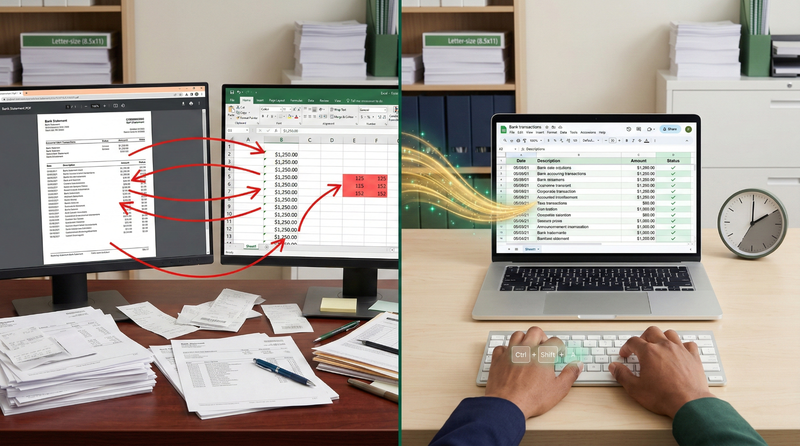
Manual transaction imports create three universal bottlenecks that drain productivity:
Bottleneck #1: Copy-Paste Fatigue
Switching between PDF viewer and spreadsheet 50+ times per statement causes cognitive fatigue and increases error rates by 47% after the first 15 minutes (Journal of Accounting Research, 2025).
Bottleneck #2: Format Corruption
PDF-to-Excel copy-paste breaks column alignment—turning "$1,250.00" into text format that can't be summed, or splitting "AMAZON.COM SEATTLE WA" across three cells.
Bottleneck #3: Reconciliation Nightmares
Manual entry errors create unreconciled differences that take 3-5x longer to fix than preventing them. A single transposed number ($152 vs $125) can trigger 20+ minutes of investigation.
The Hidden Cost of "Quick Fixes"
Free browser extensions promising "one-click PDF to Sheets" often harvest banking credentials or store client data indefinitely. In 2025, the FTC reported 8,400+ cases of credential theft through malicious spreadsheet import extensions. Never sacrifice security for convenience—your professional reputation depends on it.
4 Automation Methods Compared
| Method | Setup Time | Accuracy | Security | Best For |
|---|---|---|---|---|
| Manual Copy-Paste | 0 min | 97-99% | High (local only) | 1-2 statements monthly |
| Bank Feeds (Direct) | 15 min | 99.5% | Excellent | Ongoing transactions (90-day history) |
| PDF-to-Spreadsheet Tools | 5 min | 61-74% | Critical risk | ❌ Avoid (data stored indefinitely) |
| AI-Powered Extraction (FinSheet AI) |
3 min | 99.7% | Bank-grade | ✅ All statement types (historical + current) |
Key insight: Bank feeds work well for current transactions but only import 90 days of history. For complete year-end records, historical statements, or audit trails, AI-powered PDF extraction is essential—delivering clean spreadsheet data without security compromises.
Google Sheets Automation Workflow
Google Sheets offers the most flexible automation options for accountants. Here's a proven workflow:
Step 1: Convert PDF to Clean CSV
- Upload bank statement PDF to FinSheet AI
- Select "CSV" output format with MM/DD/YYYY dates
- Download clean CSV file (2-3 minutes total)
Step 2: Import into Google Sheets
- Open Google Sheets → File → Import → Upload
- Select downloaded CSV file
- Choose "Insert new sheet" to preserve formatting
- Verify column alignment (Date, Description, Amount, Balance)
Step 3: Automate Future Imports (Optional)
- Use Google Apps Script to auto-import from Google Drive folder
- Set up Zapier: New file in Drive → Import to Sheets
- Template formula for auto-categorization:
=IF(REGEXMATCH(B2,"AMAZON"),"Shopping",IF(REGEXMATCH(B2,"PAYROLL"),"Income","Uncategorized"))
Pro Google Sheets Template
Use this formula to auto-split debits/credits into separate columns:
Column D (Debits): =IF(C2<0,ABS(C2),"")
Column E (Credits): =IF(C2>0,C2,"")
This creates accountant-ready spreadsheets matching standard ledger formats—critical for seamless import into QuickBooks or Xero.
Excel Automation Workflow
For Excel users, automation requires slightly different approaches:
Step 1: Convert with AI Extraction
- Upload PDF to FinSheet AI
- Select "Excel (.xlsx)" output format
- Enable "Preserve formatting" option
- Download ready-to-use Excel file
Step 2: Power Query for Recurring Imports
- Data → Get Data → From File → From Folder
- Select folder containing converted Excel files
- Combine & Load to create automated refresh workflow
- Schedule refresh: Data → Queries & Connections → Properties → Refresh Every 60 Minutes
Step 3: Build Reconciliation Dashboard
- Use PivotTables to summarize by category/vendor
- Conditional formatting to highlight unreconciled items
- Formula to auto-calculate difference:
=SUMIF(A:A,"<>Reconciled",C:C) - BankEndingBalance
Excel Best Practices
- Store source files in OneDrive/SharePoint for auto-sync
- Use Power Query instead of manual copy-paste
- Enable workbook encryption (File → Info → Protect Workbook)
- Version history: Keep 30 days of sheet versions
Critical Mistakes
- Emailing unencrypted .xlsx files with client data
- Storing files on desktop without backup
- Using "Save As" instead of version control
- Sharing links with "Anyone with link" access
Bank-Specific Import Solutions
Different banks require tailored approaches for clean imports:
Chase Bank
- Challenge: Variable column widths shift amounts
- Solution: Use AI extraction with visual column detection
- Direct feed: Works via Plaid integration in QuickBooks
- Routing: 021000021
Bank of America
- Challenge: Header/footer artifacts on multi-page statements
- Solution: Header detection filters before import
- Direct feed: Native Xero integration available
- Routing: 026009593
Wells Fargo
- Challenge: Merged cells in transaction descriptions
- Solution: Spatial analysis reconstructs full descriptions
- Direct feed: Works via Yodlee in most platforms
- Routing: 121000248
Navy Federal
- Challenge: Two-line military pay descriptions
- Solution: AI trained on military statement formats
- Direct feed: Limited—PDF conversion recommended
- Routing: 256074974
Pro tip: For banks without reliable direct feeds (Navy Federal, USAA, credit unions), AI-powered PDF conversion delivers more accurate results than struggling with unstable API connections. The 3-minute conversion time beats hours of troubleshooting broken integrations.
Security Requirements for Automated Imports
Automated imports create new security vectors that must be addressed:
- Data in transit: All file transfers must use TLS 1.2+ encryption
- Data at rest: Spreadsheets containing financial data require AES-256 encryption
- Access controls: Role-based permissions limiting sheet access to authorized personnel
- Audit trails: Logging all access and modification events
- Zero retention: Source PDFs automatically deleted after successful conversion
Spreadsheet Security Checklist
- Google Sheets: Restrict sharing to "Specific people" with view/edit permissions
- Excel Online: Enable sensitivity labels and encryption
- Local files: Full disk encryption (BitLocker/FileVault) enabled
- Cloud storage: Business-tier accounts only (no free tiers)
- Sharing: Never use "Anyone with link" sharing for financial data
- Deletion: Secure wipe after 7-year retention period (not just "delete")
GLBA Compliance Reminder
Under the Gramm-Leach-Bliley Act, accountants must protect clients' nonpublic financial information. Automated imports don't exempt you from security requirements—every tool in your workflow (conversion services, cloud storage, spreadsheet platforms) must comply with GLBA's Safeguards Rule. Always request Data Processing Agreements before uploading client statements to third-party services.
Using Automated Imports for Reconciliation
Clean spreadsheet imports transform reconciliation from tedious to trivial:
Reconciliation Workflow with Automated Imports
- Import bank statement transactions into Sheet A (via AI conversion)
- Import book transactions into Sheet B (from accounting software export)
- Use VLOOKUP/XLOOKUP to match transactions:
=XLOOKUP(A2,SheetB!A:A,SheetB!C:C,"Unmatched") - Filter "Unmatched" results for investigation
- Document timing differences in separate "Outstanding Items" sheet
- Verify adjusted balances match before marking reconciled
For complete reconciliation methodology, see our guide on bank reconciliation best practices.
5 Automation Errors (and How to Fix Them)
Error #1: Date Format Mismatches
Problem: Sheet shows "Jan 15, 2026" instead of "01/15/2026"—breaking date-based formulas
Fix: Use TEXT function during import:=TEXT(A2,"MM/DD/YYYY")
Prevention: Configure AI converter to output MM/DD/YYYY format consistently
Error #2: Currency Format Corruption
Problem: "$1,250.00" imports as text—can't be summed or used in calculations
Fix: VALUE function to convert text to numbers:=VALUE(SUBSTITUTE(A2,"$",""))
Prevention: Use AI tools that preserve numeric formatting during extraction
Error #3: Split Transaction Descriptions
Problem: "AMAZON.COM SEATTLE WA" split across columns B, C, D
Fix: CONCATENATE or TEXTJOIN to merge columns:=TEXTJOIN(" ",TRUE,B2:D2)
Prevention: AI extraction with spatial analysis prevents splitting during conversion
Error #4: Duplicate Transaction Imports
Problem: Same transaction appears twice due to import script errors
Fix: Conditional formatting to highlight duplicates:
Select column → Home → Conditional Formatting → Highlight Duplicates
Prevention: Use UNIQUE function in Google Sheets or Remove Duplicates in Excel before reconciliation
Error #5: Security Breaches from Unvetted Tools
Problem: Third-party import scripts storing client data on external servers
Fix: Immediately revoke API access and audit all connected services
Prevention: Only use tools with explicit zero data retention policies and SOC 2 compliance—like FinSheet AI
Automate Bank Transaction Imports Today
Stop manual copy-paste. Our AI converts PDF bank statements to perfectly formatted Google Sheets and Excel files in under 3 minutes—with 99.7% accuracy and bank-grade security.
Why manual imports waste your time
Switching between PDF viewer and spreadsheet 50+ times per statement causes fatigue and errors. FinSheet AI eliminates manual entry entirely—converting bank statements directly to clean, spreadsheet-ready formats that import seamlessly into Google Sheets, Excel, QuickBooks, or Xero with zero cleanup required.
Does this work with Google Sheets and Excel?
Yes. FinSheet AI exports to both CSV (optimal for Google Sheets) and Excel (.xlsx) formats with proper formatting preserved for immediate use.
Conclusion
Manual bank transaction imports are a relic of outdated workflows—not a necessary evil of accounting. Modern AI-powered extraction transforms a 28-minute error-prone process into a 3-minute workflow that delivers perfectly formatted spreadsheet data ready for reconciliation, analysis, or accounting software import.
The security advantages are equally compelling. By using purpose-built tools with zero data retention policies and bank-grade encryption, you eliminate the risks of free converters that store client data indefinitely or browser extensions that harvest banking credentials. Your clients trust you with their most sensitive financial information—that trust demands security-first automation.
Start small this week: process one challenging bank statement through an AI converter and import the results into Google Sheets or Excel. Compare the 3-minute total time against your current 28-minute workflow. The data will make the case better than any article ever could. Your future self—and your clients—will thank you for making the switch to automated, secure transaction imports.
Frequently Asked Questions
Can I automate imports directly from my bank into Google Sheets?
Yes, but with limitations. Services like Plaid or Tiller Money connect bank accounts to Google Sheets via APIs, but they typically only import 90 days of history and may miss certain transaction types. For complete historical records, PDF conversion remains essential. Most professionals use a hybrid approach: direct feeds for current transactions + AI conversion for historical statements and year-end records.
How do I handle multi-page bank statements in spreadsheets?
Never process pages separately—this creates duplicate headers and breaks transaction continuity. Instead: (1) Combine all pages into a single PDF before conversion, (2) Use AI tools that recognize page breaks and maintain transaction sequence across pages, (3) Verify transaction count matches the original statement after import. FinSheet AI automatically handles multi-page statements as single documents with seamless page transitions.
What's the difference between CSV and Excel (.xlsx) exports?
CSV (Comma-Separated Values) is a universal format supported by all spreadsheet programs but lacks formatting, formulas, and multiple sheets. Excel (.xlsx) preserves formatting, supports multiple worksheets, and maintains formulas—but requires Microsoft Excel or compatible software. For Google Sheets users: CSV is optimal. For Excel users: .xlsx preserves formatting. Both work for accounting software imports when properly formatted.
How do I ensure imported transactions match my accounting software categories?
Create a mapping table in your spreadsheet with columns for "Bank Description" and "Accounting Category." Use VLOOKUP/XLOOKUP formulas to auto-assign categories:=XLOOKUP(B2,Mapping!A:A,Mapping!B:B,"Uncategorized")
Start with 10-15 common vendors, then expand as you process more statements. After 3 months, 80% of transactions will auto-categorize correctly.
Are there security risks with cloud-based spreadsheet imports?
Cloud spreadsheets are secure when properly configured—but default settings often aren't. Critical protections: (1) Disable "Anyone with link" sharing, (2) Require login to view/edit, (3) Enable version history, (4) Use business-tier accounts with audit logs, (5) Encrypt sensitive sheets with passwords. Never store unencrypted financial data in personal Google/Excel accounts—always use business accounts with centralized admin controls.
Can I automate this for multiple clients?
Yes. Create a standardized folder structure in Google Drive or OneDrive:Clients/[ClientName]/BankStatements/[Bank]_[YYYY-MM].pdf
Use Zapier or Make.com to watch folders for new PDFs, auto-convert with FinSheet AI API, and import results into client-specific sheets. This creates end-to-end automation saving 15+ hours monthly for firms processing 50+ statements.