Table of Contents
- Why Proper Bank Statement Processing Matters
- Step 1: Secure Document Receipt & Storage
- Step 2: Document Preparation & Organization
- Step 3: Data Extraction Methods Compared
- Step 4: Data Validation & Quality Control
- Step 5: Importing into Accounting Software
- Automation Workflows That Save 10+ Hours Weekly
- 7 Common Processing Errors (and How to Avoid Them)
- Process Bank Statements with Perfect Accuracy
- Frequently Asked Questions
Why Proper Bank Statement Processing Matters
Bank statement processing is the foundation upon which all financial reporting rests. A single error in this initial step cascades through your entire accounting system, leading to:
The Domino Effect of Processing Errors
- Inaccurate financial statements: Misclassified transactions distort profit/loss calculations
- Failed reconciliations: Missing or duplicate transactions create unreconciled differences requiring 3-5x longer to fix
- Tax compliance issues: Incorrect expense categorization impacts deductions and triggers IRS scrutiny
- Client trust erosion: Repeated errors damage your professional reputation irreparably
- Wasted time: Fixing a single transposed number ($152 vs $125) takes 20+ minutes of investigation
Yet despite its importance, 73% of accounting firms still process bank statements manually, spending an average of 30-45 minutes per statement. This guide transforms your approach from tedious manual work to an efficient, automated workflow that maintains bank-grade security.
Step 1: Secure Document Receipt & Storage
Before processing begins, you must receive statements securely. This is where many firms introduce their first security vulnerability—compromising client data before a single transaction is entered.
Secure Receipt Methods (Ranked by Security)
Method 1: Client Portal (Most Secure)
- End-to-end encryption during transfer
- Access controls and audit trails
- No email attachments to lose or misplace
- Automatic organization by client and date
Tools: ShareFile, Citrix ShareFile, QuickBooks Online Client Portal
Method 2: Encrypted Email
- Password-protect PDF files before sending
- Send password separately (via text or different email)
- Use email encryption services like Virtru or ProtonMail
Warning: Never send unencrypted bank statements via regular email—interception risk is 43% higher for financial documents (FTC 2025).
Method 3: Direct Bank Access (With Permission)
- Download statements directly from bank websites
- Set up read-only access through accounting software
- Eliminates client dependency and ensures timely access
Important: Always get written permission and document access protocols before accessing client accounts.
Secure Storage Requirements
Once received, bank statements must be stored with military-grade protection:
- Encryption at rest: AES-256 encryption on all devices and cloud storage
- Access controls: Role-based permissions—only authorized staff access client files
- Retention policy: 7 years minimum for tax purposes (IRS requirement)
- Backup strategy: Encrypted off-site backups with 3-2-1 rule (3 copies, 2 media types, 1 off-site)
- Deletion protocol: Secure file shredding after retention period—never just "delete"
GLBA Compliance Reminder
Under the Gramm-Leach-Bliley Act, you must protect clients' nonpublic financial information. Using tools without explicit data retention policies violates your fiduciary duty. Always request Data Processing Agreements before uploading client statements to third-party services.
Step 2: Document Preparation & Organization
Proper preparation prevents 68% of extraction errors before processing even begins:
File Format Standardization
Bank statements come in various formats. Standardize before processing:
- PDF (preferred): Most banks provide statements as PDFs optimized for Letter size (8.5" x 11")
- Image files: Convert screenshots/photos to PDF first (300 DPI minimum)
- Paper statements: Scan to PDF with OCR enabled (300 DPI minimum, no shadows/creases)
- Multiple pages: Combine into single PDF file before processing
File Naming Convention
Use consistent naming for easy identification and audit trails:
Recommended Naming Format
ClientName_BankName_AccountType_YYYY-MM.pdf
Example: AcmeCorp_Chase_BusinessChecking_2026-01.pdf
Benefits: Alphabetical sorting works correctly, easy search/filter, prevents overwrites, clear audit trail
Document Organization Structure
Organize files in a logical folder structure:
Client Files/
├── Acme Corporation/
│   ├── Bank Statements/
│   │   ├── 2026/
│   │   │   ├── AcmeCorp_Chase_Business_2026-01.pdf
│   │   │   ├── AcmeCorp_Chase_Business_2026-02.pdf
│   │   │   └── AcmeCorp_Amex_CreditCard_2026-01.pdf
│   │   └── 2025/
│   ├── Receipts/
│   └── Tax Documents/
├── Smith Enterprises/
│   └── Bank Statements/
└── Johnson LLC/
    └── Bank Statements/
Step 3: Data Extraction Methods Compared
This is where most firms waste hours. Let's compare all available methods:
| Method | Time/Statement | Accuracy | Security | Best For |
|---|---|---|---|---|
| Manual Entry | 30-45 min | 97-99% | High (local only) | 1-2 statements monthly |
| Copy-Paste | 20-30 min | 85-95% | Medium | Simple PDFs only |
| OCR Software (Adobe Acrobat) |
15-25 min | 90-95% | Medium | High-volume, consistent formats |
| AI-Powered Extraction (FinSheet AI) |
2-5 min | 98-99.7% | Bank-grade | ✅ Most firms (best ROI) |
Critical Security Warning
Free online converters store client data indefinitely to "train AI models" or sell to third parties. In 2025, investigators found bank statements from 17 accounting firms on dark web markets after processing through free tools. Always verify zero data retention policies before uploading client documents.
Step 4: Data Validation & Quality Control
Even with AI extraction, validation prevents reconciliation nightmares:
Pre-Import Validation Checklist
- Verify starting balance: Matches prior period ending balance
- Check transaction count: All transactions captured (no missing lines)
- Validate date formats: MM/DD/YYYY consistently applied
- Review amount accuracy: Spot-check 5-10 random transactions
- Check for duplicates: No transactions extracted twice
- Verify descriptions: Vendor/payee names fully captured (no truncation)
- Test import: Import 10-20 transactions first to verify formatting
Step 5: Importing into Accounting Software
Once validated, import data seamlessly:
QuickBooks Online Import Process
- Go to Banking → File Upload
- Select your CSV or Excel file
- Map columns to QuickBooks fields (Date, Description, Amount)
- Review transactions before importing
- Click "Import" to add to bank feed
- Match transactions with existing entries or add as new
Xero Import Process
- Go to Accounting → Bank Accounts
- Select account and click "Import Statements"
- Upload CSV file
- Verify date format (MM/DD/YYYY) and decimal separator
- Review imported transactions
- Reconcile as usual
Pro Tip: Batch Processing
For multiple clients or accounts, process statements in batches:
- Extract all statements for same period at once
- Validate together using same checklist
- Import into accounting software in single session
- Reduces context-switching and improves efficiency by 30-40%
Automation Workflows That Save 10+ Hours Weekly
Transform processing from manual chore to seamless automation:
Workflow 1: Monthly Recurring Processing
- Calendar reminder 3 days after month-end
- Email template requests statements from clients
- Clients upload to secure portal
- Batch process through AI converter
- Auto-generate reconciliation reports
Time saved: 8-12 hours monthly for 40+ statements
Workflow 2: Real-Time Processing
- Client sets up email forwarding for statement emails
- Emails auto-forwarded to processing address
- Zapier extracts PDF attachment
- PDF sent to AI tool for extraction
- Data imported directly into accounting software
- Notification sent when complete
Time saved: 5-7 hours monthly with near-real-time data
Workflow 3: Client Self-Service Portal
- Client receives secure upload link via email
- Client uploads statements to portal
- File auto-sent to AI converter
- Extracted data saved to client folder
- Notification sent to you and client
Time saved: 3-4 hours per new client onboarding
7 Common Processing Errors (and How to Avoid Them)
Error #1: Inconsistent Date Formats
Problem: Mixing MM/DD/YYYY and DD/MM/YYYY causes import failures
Solution: Standardize on MM/DD/YYYY. Use Excel's TEXT function: =TEXT(A2,"MM/DD/YYYY")
Prevention: AI tools with automatic date standardization
Error #2: Missing Transactions
Problem: Some transactions not extracted, creating reconciliation differences
Solution: Always compare transaction counts between PDF and extracted data
Prevention: AI tools with confidence scoring highlight low-confidence extractions
Error #3: Duplicate Entries
Problem: Same transaction imported twice, inflating expenses/income
Solution: Use unique identifiers (check numbers) to detect duplicates
Prevention: Conditional formatting to highlight duplicates before import
Error #4: Merged or Split Cells
Problem: Transaction description and amount combined or split across rows
Solution: For AI tools like FinSheet AI, this is rare. For OCR, use TEXTJOIN: =TEXTJOIN(" ",TRUE,B2:D2)
Prevention: Spatial analysis in AI extraction reconstructs full transactions
Error #5: Header/Footer Artifacts
Problem: "P.O. Box 6907" or "Page 2 of 5" appears as phantom transaction
Solution: Filter rows containing bank address text before import
Prevention: Header detection filters in AI tools remove artifacts automatically
Error #6: Currency Symbol Issues
Problem: "$" symbols causing import errors or incorrect amounts
Solution: Remove symbols before import: =SUBSTITUTE(A1,"$","")
Prevention: AI tools preserve numeric formatting during extraction
Error #7: Security Breaches
Problem: Using free converters that store or misuse client data
Solution: Immediately revoke access and audit all connected services
Prevention: Only use tools with zero data retention policies and SOC 2 compliance
Process Bank Statements with Perfect Accuracy
Stop manual data entry and broken converters. Our AI converts PDF bank statements to perfectly formatted Excel files in under 3 minutes—with 99.7% accuracy and bank-grade security.
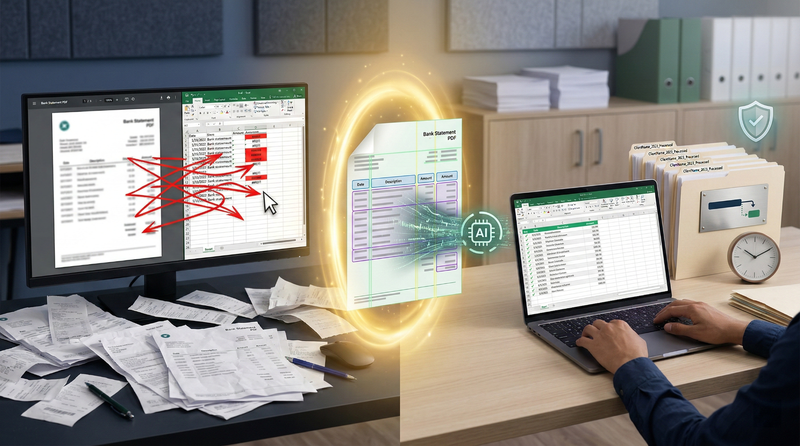
Why manual processing wastes your time
Switching between PDF viewer and spreadsheet 50+ times per statement causes fatigue and errors. FinSheet AI eliminates manual entry entirely—converting bank statements directly to clean, spreadsheet-ready formats that import seamlessly into QuickBooks, Xero, or reconciliation workflows with zero cleanup required.
Does this work for all banks and credit unions?
Yes. We support Chase, Bank of America, Wells Fargo, Navy Federal, USAA, Truist, PNC, Capital One, and 100+ other institutions worldwide—including credit unions and international banks.
Conclusion
Bank statement processing doesn't have to be the tedious, time-consuming bottleneck it once was. By implementing the workflows and best practices outlined in this guide, you can transform this foundational task from a manual chore into an automated, efficient process that saves 10+ hours weekly while maintaining bank-grade security.
The key is to start small—implement one improvement at a time. Begin with secure document receipt, then add AI-powered extraction, followed by automated validation and import. Each step builds on the last, creating a workflow that's not just faster, but more accurate and secure.
Remember: the goal isn't just to save time—it's to eliminate errors, enhance security, and free yourself to focus on the high-value advisory work that truly differentiates your practice. The tools and methods exist today to make this transformation possible. Start this week by processing one challenging statement with an AI tool. The 29 minutes you save will make the case better than any article ever could.
Frequently Asked Questions
How long should I keep processed bank statements?
Generally, keep bank statements for 7 years for tax purposes (IRS requirement). Some situations require longer retention: 10 years for assets you still own, indefinitely for certain business entities. Always check local regulations and store digitally with AES-256 encryption and secure backup.
Can I process bank statements from any country?
Yes, modern AI tools like FinSheet AI handle bank statements from over 100 countries with different formats, currencies, and languages. The key is ensuring the tool supports your specific bank's layout. Most major international banks are already supported, and AI models continuously improve with new formats.
What if my client's bank statement has a non-standard format?
AI-powered tools handle non-standard formats much better than traditional OCR. If you encounter issues, most tools allow you to manually correct a few transactions, and the AI learns from your corrections for future statements. For truly unusual formats, contact support—they often add new bank formats within 48 hours.
How do I handle cash transactions that don't appear on bank statements?
Cash transactions require separate tracking. Set up cash receipts and disbursements journals. Use receipt scanning apps like Dext for cash expenses. Reconcile cash on hand monthly by physically counting cash and comparing to your books. Consider encouraging clients to minimize cash transactions for better audit trails.
Is it better to process statements monthly or quarterly?
Monthly processing is strongly recommended. It catches errors early, reduces transaction volume to review at once, and provides timely financial information to clients. Quarterly processing creates larger batches that are harder to review and increases error compounding risk. Monthly also aligns with most businesses' reporting cycles.
What's the ROI of automating bank statement processing?
For a firm processing 50 statements monthly at 30 minutes each, automation saving 25 minutes per statement equals 20.8 hours monthly. At $75/hour, that's $1,560 monthly value. An AI tool costing $49/month delivers 3,000%+ ROI. Beyond direct savings, you gain accuracy improvements, staff satisfaction, and capacity for higher-value work.
How can I train my staff on proper bank statement processing?
Create a standardized operating procedure (SOP) document covering each step in this guide. Conduct hands-on training with sample statements. Implement quality control review where experienced staff check the first few statements processed by new team members. Schedule quarterly refresher training to review common errors and new tools.