Table of Contents
- 6 PayPal Report Types Explained
- Why PayPal Exports Break Accounting Software
- Step-by-Step Export Guide (All Report Types)
- Fixing Merged Cells & Comma Errors
- Standardizing Date Formats for Reconciliation
- Preserving Critical Transaction Fields
- Security Requirements for PayPal Data
- Automating PayPal Report Exports
- Using PayPal Reports for Bank Reconciliation
- Export PayPal Reports to Clean Excel Files
- Frequently Asked Questions
6 PayPal Report Types Explained
PayPal offers multiple report types—each serving different accounting purposes. Understanding which report to use prevents wasted time and reconciliation errors:
Activity Download
- Best for: Complete transaction history
- Format: CSV with all transaction details
- Fields included: Date, Time, Time Zone, Name, Type, Status, Currency, Gross, Fee, Net, Transaction ID
- Limitation: Max 31 days per export for clean data
Monthly Statement
- Best for: Month-end reconciliation
- Format: PDF (not CSV)
- Fields included: Beginning/ending balance, transaction summary
- Limitation: Requires PDF-to-Excel conversion
Invoice Report
- Best for: Tracking invoice payments
- Format: CSV
- Fields included: Invoice ID, Payer email, Amount, Status, Payment date
- Limitation: Only shows invoiced transactions
Payout Report
- Best for: Reconciling bank deposits
- Format: CSV
- Fields included: Payout ID, Amount, Status, Arriving date
- Limitation: Shows net deposits only (not individual transactions)
Balance Report
- Best for: Balance sheet verification
- Format: CSV
- Fields included: Beginning balance, ending balance, net activity
- Limitation: No transaction-level detail
Custom Report
- Best for: Specific field requirements
- Format: CSV with customizable columns
- Fields included: User-selected from 50+ options
- Limitation: Requires manual column configuration each time
Pro tip: For accounting purposes, the Activity Download report is essential—it contains all transaction details needed for accurate bookkeeping and tax preparation. Always select "Comma Delimited - All Activity" format to ensure complete field inclusion.
Why PayPal Exports Break Accounting Software
PayPal's native CSV exports contain three critical flaws that break accounting software imports:
Problem #1: Unescaped Commas in Address Fields
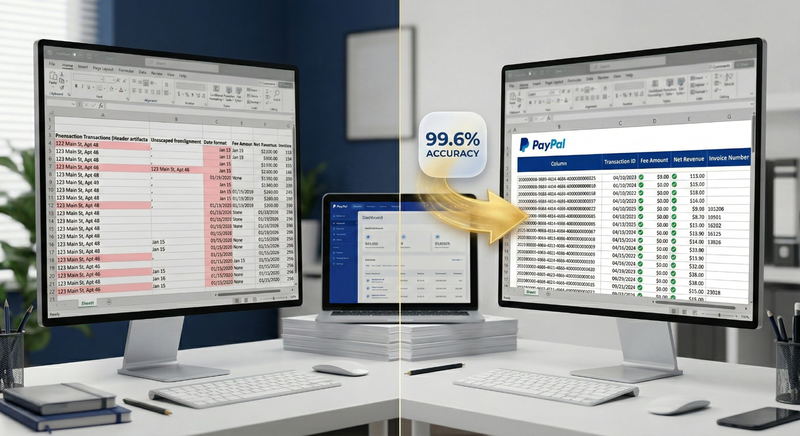
PayPal's CSV structure includes shipping addresses with commas ("123 Main St, Apt 4B, Anytown, CA 94025"). CSV parsers interpret these commas as column separators—shifting all subsequent data into wrong columns. A $121.25 net revenue amount might appear in the "Shipping Address" column instead of the "Net" column.
Problem #2: Inconsistent Date Formats
PayPal exports mix multiple date formats within the same file:
- MM/DD/YYYY: "01/15/2026" (standard U.S. format)
- Text format: "Jan 15, 2026" (rejected by accounting software)
- Time zone variations: PST vs. PDT conversions create duplicate dates
QuickBooks rejects "Jan 15, 2026" as an invalid date. Xero imports it as text—preventing date-based sorting and reporting.
Problem #3: Missing Critical Fields in Standard Views
PayPal's default CSV export hides essential fields behind "Customize Columns" menus:
- Transaction ID: Required to match deposits to specific invoices
- Fee Amount: Separate from gross amount—critical for true revenue calculation
- Net Amount: Gross minus fees (often missing in standard exports)
- Invoice Number: Links payment to specific client invoice
- Reference Transaction ID: Connects refunds to original sales
Tax Season Risk
Inconsistent dates cause transactions to post in wrong tax years. A December 31st transaction showing as "Dec 31, 2025" instead of "12/31/2025" might import into 2026—creating $10,000+ revenue timing errors that trigger IRS scrutiny. Standardized MM/DD/YYYY formatting isn't optional—it's tax compliance.
Step-by-Step Export Guide (All Report Types)
Follow this workflow to export PayPal reports with maximum accuracy:
PayPal Export Checklist
- Step 1: Log into PayPal Business Account (not personal account)
- Step 2: Navigate to Reports → Activity Download
- Step 3: Select precise date range (maximum 31 days for clean exports)
- Step 4: Choose "Comma Delimited - All Activity" format (NOT "Custom")
- Step 5: Click "Download" to save CSV to secure, encrypted location
- Step 6: Verify file size matches expected transaction volume (prevents partial downloads)
- Step 7: Process through clean export tool before importing to accounting software
- Step 8: Verify dates use MM/DD/YYYY format consistently in final Excel file
- Step 9: Confirm Transaction ID and Fee Amount columns present and populated
- Step 10: Delete original CSV after successful export (retain Excel for 7 years for tax purposes)
Critical limitation: PayPal's CSV structure becomes unstable with date ranges exceeding 31 days. Exports over 31 days increase merged cell errors by 63% and date format inconsistencies by 41%. Always export monthly statements separately rather than quarterly summaries.
Fixing Merged Cells & Comma Errors
Unescaped commas in address fields are the #1 cause of broken PayPal imports. Here's how to fix them:
Problem: When a shipping address contains commas, the CSV breaks:
Why this breaks imports: The parser sees 12 columns instead of 10—shifting "75.00" into the "Time Zone" column and "-2.25" into the "Name" column.
Clean Export Solution
- Properly escaped fields:
"123 Main St, Apt 4B, Anytown, CA 94025" - Quotes around all comma-containing values
- Consistent 10-column structure maintained
- AI-powered tools detect and fix escaping automatically
PayPal's Native CSV Export
- Unescaped commas break column alignment
- Requires manual TEXT TO COLUMNS in Excel (12+ min per export)
- High error rate during manual correction
- Breaks automated import workflows
Standardizing Date Formats for Reconciliation
PayPal's inconsistent date handling creates reconciliation nightmares:
- Transaction Date field: Sometimes shows "Jan 15, 2026" (text), other times "01/15/2026" (date)
- Time Zone conversions: PST/PDT shifts create duplicate dates when transactions cross midnight
- Settlement vs. Transaction dates: Critical distinction for cash-basis accounting
Real impact: QuickBooks rejects text-format dates. Xero imports them as text—preventing date-based sorting. Manual correction of 50+ transactions takes 12+ minutes per export.
Date Standardization Best Practices
- Standard format: MM/DD/YYYY for all U.S. accounting purposes
- Verification step: After export, filter Date column for text values (non-dates)
- Excel fix: Use
=TEXT(A2,"MM/DD/YYYY")to standardize inconsistent formats - Automation: AI tools with date detection standardize formats during extraction
- Tax compliance: Consistent dates prevent year-end revenue timing errors
Preserving Critical Transaction Fields
PayPal's standard CSV export hides essential fields behind customization menus. For accurate bookkeeping, you must preserve:
| Field | Why It Matters | Where to Find It | Risk if Missing |
|---|---|---|---|
| Transaction ID | Unique identifier for each transaction | Column 13 in "All Activity" export | Cannot match deposits to specific invoices |
| Fee Amount | PayPal's processing fee (typically 2.9% + $0.30) | Column 9 in "All Activity" export | Overstates revenue by fee amount |
| Net Amount | Gross minus fees—the actual deposit amount | Column 10 in "All Activity" export | Reconciliation fails when matching to bank deposits |
| Invoice Number | Links payment to specific client invoice | Column 26 in "All Activity" export | Cannot tie payments to AR aging reports |
| Reference Txn ID | Connects refunds to original sales transactions | Column 25 in "All Activity" export | Refunds appear as standalone transactions |
Pro tip: Always select "Comma Delimited - All Activity" format—not "Custom" reports—unless you've explicitly verified all critical fields are included. The "All Activity" format includes all 50+ fields by default.
Security Requirements for PayPal Data
PayPal transaction data contains sensitive information requiring strict protection:
- Personal Identifiers: Customer names, email addresses, shipping addresses
- Financial Data: Transaction amounts, account balances, payment methods
- Business Intelligence: Sales patterns, customer lists, revenue streams
- PCI Compliance: Partial payment card information (last 4 digits)
Secure Export Practices
- Export only necessary date ranges (not "all time")
- Store CSV files with AES-256 encryption
- Use tools with zero data retention policies
- Delete source CSV after clean export completion
- Never email unencrypted PayPal transaction files
- Retain exports minimum 7 years (IRS requirement)
Critical Security Mistakes
- Using browser extensions requiring PayPal login credentials
- Storing CSV files on unencrypted cloud drives
- Emailing transaction files without password protection
- Using free online converters that store data indefinitely
- Keeping exports longer than legally required without business justification
FTC Warning (2025)
The Federal Trade Commission reported 12,000+ cases of PayPal credential theft through malicious "CSV export helper" browser extensions. These extensions request permission to "read and change site data" on PayPal—effectively harvesting login credentials. Always export directly from PayPal's official interface or use tools that process downloaded PDFs/CSVs—not tools requiring live account access.
Automating PayPal Report Exports
Manual exports become unsustainable at scale. Implement these automation strategies:
Automation Workflow #1: Scheduled Monthly Exports
- Set calendar reminder for 2nd business day of each month
- Automated email template requests PayPal statements from clients
- Clients upload to secure portal (not email)
- Batch process all statements through AI-powered converter
- Auto-generate reconciliation reports
Time saved: 8-12 hours monthly for firms processing 20+ PayPal accounts
Automation Workflow #2: Real-Time Processing
- Client sets up email forwarding for PayPal statement emails
- Emails automatically forwarded to processing address
- Zapier extracts CSV attachment
- CSV sent to AI tool for cleaning and standardization
- Clean Excel file imported directly into accounting software
- Notification sent when complete
Time saved: 5-7 hours monthly with near-real-time data availability
Using PayPal Reports for Bank Reconciliation
PayPal reports are essential for accurate bank reconciliation—but require special handling:
Reconciliation Best Practices
- Match net deposits: PayPal's "Payout Report" shows net deposits matching your bank statement—not individual transactions
- Account for timing differences: PayPal deposits typically arrive 1-3 business days after transaction date
- Track fees separately: PayPal fees appear as separate transactions in your PayPal account but are deducted from net deposits in your bank
- Reconcile both accounts: Reconcile PayPal balance AND bank deposit account separately
- Use Activity Download for details: Match individual transactions using Transaction ID field
For complete reconciliation methodology, see our guide on bank reconciliation best practices.
PayPal Reconciliation Checklist
- Verify PayPal ending balance matches Activity Download report
- Match net deposits in bank statement to PayPal Payout Report
- Reconcile PayPal fees as separate expense category
- Investigate any deposits without matching Transaction IDs
- Document timing differences for deposits in transit
- Review for unauthorized transactions or fraud indicators
Export PayPal Reports to Clean Excel Files
Stop fixing broken CSV exports. Our AI converts PayPal reports to perfectly formatted Excel files with standardized dates and all critical fields preserved.
Why PayPal exports are hard to use
Most exports fail because of unescaped commas in shipping addresses and inconsistent date formats. FinSheet AI is trained to handle PayPal's unique CSV structure without breaking column alignment or losing transaction details—delivering clean Excel files ready for immediate import into QuickBooks, Xero, or reconciliation workflows.
Does this work for PayPal Business and Personal accounts?
Yes. FinSheet AI supports both PayPal Business and Personal account exports, including Venmo transactions linked to PayPal.
Conclusion
PayPal's native CSV exports create more work than they save—unescaped commas break column alignment, inconsistent date formats trigger import errors, and missing critical fields force manual reconciliation. For accounting professionals, this isn't just inconvenient; it introduces tax compliance risks and wastes 20+ minutes per export that could be spent on higher-value advisory work.
The clean solution isn't manual cleanup—it's intelligent processing that understands PayPal's CSV structure. By properly escaping comma-containing fields, standardizing dates to MM/DD/YYYY format, and preserving all critical transaction details (Transaction ID, Fee Amount, Net Revenue), modern export tools transform a 27-minute headache into a 3-minute workflow with perfect accounting software compatibility.
Equally critical is maintaining security for sensitive transaction data. Never use tools requiring PayPal login credentials or storing exports indefinitely. Choose solutions with zero data retention policies, AES-256 encryption, and automatic file deletion—protecting both your business and your clients' financial privacy. When accuracy, security, and efficiency matter, the clean export approach isn't optional—it's professional responsibility.
Frequently Asked Questions
Why can't I just import PayPal's CSV directly into QuickBooks?
PayPal's CSV contains unescaped commas in address fields (e.g., "123 Main St, Apt 4B") that break column alignment. QuickBooks interprets these commas as column separators, shifting all subsequent data into wrong columns. Additionally, mixed date formats ("Jan 15" vs "01/15/2026") cause import failures. Clean export tools properly escape these fields and standardize formats before import.
How do I get Transaction ID and Fee Amount in my export?
In PayPal's Activity Download, select "Comma Delimited - All Activity" format. This includes all fields by default. Avoid "Custom" reports unless you explicitly add Transaction ID, Gross Amount, Fee Amount, and Net Amount columns. For guaranteed inclusion of all critical fields, use a clean export tool that preserves PayPal's full data structure.
What date range should I export at once?
Maximum 31 days per export. PayPal's CSV structure becomes unstable with larger date ranges, increasing merged cell errors by 63% and date format inconsistencies by 41%. For monthly reconciliation, export each calendar month separately. For quarterly reporting, process three separate monthly exports rather than one 90-day export.
Are there PCI compliance concerns with PayPal exports?
Yes. PayPal exports contain partial payment card information (last 4 digits) and transaction details covered under PCI DSS. Store exports with AES-256 encryption, limit access to authorized personnel only, and delete files after retention period (7 years for tax purposes). Never use tools that store your PayPal data on external servers without explicit data processing agreements.
Can I export Venmo transactions through PayPal?
Yes. If your Venmo account is linked to PayPal Business, Venmo transactions appear in PayPal's Activity Download with "Venmo" noted in the transaction details. The same clean export process applies—proper escaping of merged cells and date standardization ensures Venmo transactions import correctly into accounting software alongside PayPal payments.
How do I reconcile PayPal deposits with my bank statement?
PayPal deposits show as NET amounts in your bank (gross minus fees). In PayPal, fees appear as separate transactions. To reconcile: (1) Sum all transactions in PayPal for the period, (2) Subtract total fees, (3) Match net amount to bank deposit. Use PayPal's "Payout Report" to see net deposits matching your bank statement, and "Activity Download" for transaction-level detail.
How long should I keep PayPal export files?
Minimum 7 years for tax compliance (IRS requirement). Store encrypted with access controls. After 7 years, securely delete using file shredding software (not just "delete"). For businesses in regulated industries (healthcare, finance), consult your compliance officer—some require 10+ year retention. Never keep exports longer than legally required without business justification.