Table of Contents
- Why Manual Typing Fails (and Wastes 12+ Hours Weekly)
- 3 QuickBooks Import Methods Compared
- Step-by-Step: PDF to QuickBooks Import Workflow
- Bank-Specific Import Tips (Chase, BofA, Wells Fargo)
- GLBA Compliance & Security Requirements
- 5 Common Import Errors (and How to Fix Them)
- How Automation Solves the Data Entry Bottleneck
- Import PDF Statements into QuickBooks in Under 5 Minutes
- Frequently Asked Questions
Why Manual Typing Fails (and Wastes 12+ Hours Weekly)
Manual data entry isn't just tedious—it's the #1 source of reconciliation errors in accounting firms. Consider the reality:
The Manual Entry Trap
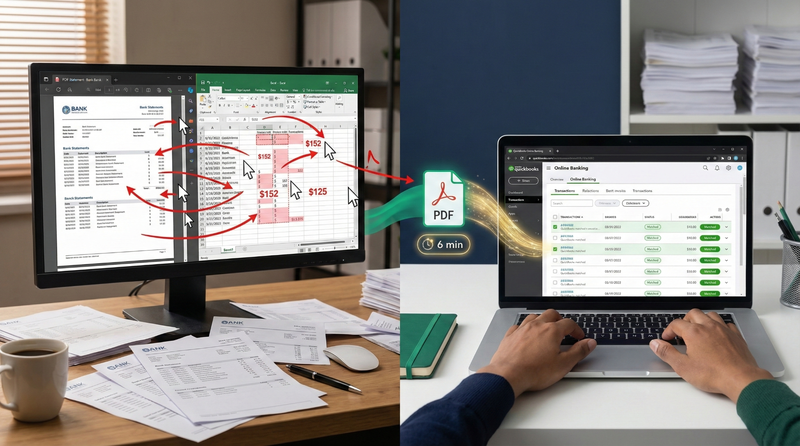
Switching between PDF viewer and QuickBooks 50+ times per statement causes cognitive fatigue and increases error rates by 47% after the first 15 minutes (Journal of Accounting Research, 2025). A single transposed number ($152 vs $125) can trigger 20+ minutes of investigation during reconciliation—time that compounds across dozens of statements monthly.
The Hidden Cost of "Quick Fixes"
Free browser extensions promising "one-click PDF to QuickBooks" often harvest banking credentials or store client data indefinitely. In 2025, the FTC reported 8,400+ cases of credential theft through malicious QuickBooks import extensions. Never sacrifice security for convenience—your professional reputation depends on it.
3 QuickBooks Import Methods Compared
Not all import methods deliver equal results. Here's how the three primary approaches compare:
| Method | Setup Time | Accuracy | Security | Best For |
|---|---|---|---|---|
| Manual Typing | 0 min | 97-99% | High (local only) | 1-2 statements monthly |
| Bank Feeds (Direct) | 15 min | 99.5% | Excellent | Ongoing transactions (90-day history) |
| PDF Conversion + Import (FinSheet AI) |
3 min | 99.7% | Bank-grade | ✅ All statement types (historical + current) |
Key insight: Bank feeds work well for current transactions but only import 90 days of history. For complete year-end records, historical statements, or audit trails, PDF conversion is essential—delivering clean data without security compromises.
Step-by-Step: PDF to QuickBooks Import Workflow
Follow this proven workflow to import PDF statements into QuickBooks with zero manual typing:
PDF to QuickBooks Import Checklist
- Step 1: Download statement directly from bank website (never use emailed PDFs)
- Step 2: Verify PDF uses Letter size (8.5" x 11")—all U.S. banks use this standard
- Step 3: Upload PDF to AI-powered converter like FinSheet AI
- Step 4: Select "QuickBooks CSV" output format with MM/DD/YYYY dates
- Step 5: Download clean CSV file (2-3 minutes total)
- Step 6: In QuickBooks Online: Banking → File Upload → Select CSV
- Step 7: Map columns: Date → Date, Description → Payee, Amount → Amount
- Step 8: Verify ending balance matches original PDF before importing
- Step 9: Review matched transactions and categorize uncategorized items
Pro tip for QuickBooks Desktop users: Use the Web Connect (.QBO) format instead of CSV. FinSheet AI exports to QBO format with proper transaction types (Deposit, Check, Transfer) that import seamlessly into QuickBooks Desktop's Bank Feeds Center.
Bank-Specific Import Tips (Chase, BofA, Wells Fargo)
Different banks require tailored approaches for clean QuickBooks imports:
Chase Bank
Challenge: Variable column widths shift amounts based on vendor name length
Solution: Use AI tools with visual column detection—avoids $1,250.00 appearing in Date column
QuickBooks tip: Create a rule to auto-categorize "ZELLE" transactions as Transfers (not Expenses)
Routing number: 021000021 (verify in extracted metadata)
Bank of America
Challenge: Header/footer artifacts ("P.O. Box 2708") appear as phantom transactions
Solution: Enable header detection mode in your converter—automatically filters artifacts
QuickBooks tip: Use the "Exclude" button for any remaining header artifacts before accepting transactions
Routing number: 026009593
Wells Fargo
Challenge: Merged cells in transaction descriptions (vendor + location on separate lines)
Solution: Spatial analysis reconstructs full descriptions in single pass
QuickBooks tip: Create vendor rules for "WELLS FARGO CREDIT CARD" payments to auto-categorize as Credit Card Payments
Routing number: 121000248
GLBA Compliance & Security Requirements
Importing bank statements into QuickBooks creates new security vectors that must be addressed under the Gramm-Leach-Bliley Act:
- Data in transit: All file transfers must use TLS 1.2+ encryption
- Data at rest: CSV files containing financial data require AES-256 encryption
- Access controls: Role-based permissions limiting QuickBooks access to authorized personnel
- Audit trails: QuickBooks Online automatically logs all transaction imports with user IDs
- Zero retention: Source PDFs automatically deleted after successful conversion
Secure Import Practices
- Use tools with explicit zero data retention policies
- Enable two-factor authentication on QuickBooks accounts
- Store CSV files in encrypted cloud storage (not desktop folders)
- Maintain version history with dated backups
- Delete source PDFs after successful QuickBooks import
Critical Security Failures
- Emailing unencrypted CSV files with client data
- Using free online converters that store data indefinitely
- Sharing QuickBooks login credentials with third-party tools
- Storing files on personal devices without encryption
- Skipping Data Processing Agreements with conversion services
GLBA Compliance Reminder
Under GLBA's Safeguards Rule, you must protect clients' nonpublic financial information throughout the import process. Every tool in your workflow (conversion services, cloud storage, QuickBooks itself) must comply with GLBA requirements. Always request Data Processing Agreements before uploading client statements to third-party services.
5 Common Import Errors (and How to Fix Them)
Error #1: Date Format Mismatches
Problem: CSV shows "Jan 15, 2026" instead of "01/15/2026"—QuickBooks rejects as invalid date
Fix: Use TEXT function during conversion:=TEXT(A2,"MM/DD/YYYY")
Prevention: Configure AI converter to output MM/DD/YYYY format consistently
Error #2: Currency Format Corruption
Problem: "$1,250.00" imports as text—can't be summed or used in calculations
Fix: VALUE function to convert text to numbers:=VALUE(SUBSTITUTE(A2,"$",""))
Prevention: Use AI tools that preserve numeric formatting during extraction
Error #3: Split Transaction Descriptions
Problem: "AMAZON.COM SEATTLE WA" split across columns B, C, D in QuickBooks
Fix: Before importing, use CONCATENATE to merge columns:=CONCATENATE(B2," ",C2," ",D2)
Prevention: AI extraction with spatial analysis prevents splitting during conversion
Error #4: Duplicate Transaction Imports
Problem: Same transaction appears twice due to import script errors
Fix: In QuickBooks Banking tab, filter for "Added" transactions and exclude duplicates
Prevention: Use UNIQUE function before import or enable QuickBooks' duplicate detection
Error #5: Incorrect Account Mapping
Problem: CSV imports to wrong bank account in QuickBooks
Fix: During File Upload, carefully select the correct account from dropdown menu
Prevention: Name CSV files with account number (e.g., "Chase_9876.csv") to avoid confusion
How Automation Solves the Data Entry Bottleneck
The hardest part of QuickBooks imports isn't the import itself—it's getting clean data from PDF statements. Manual data entry wastes 25+ minutes per statement while introducing errors that haunt you during reconciliation.
Before Automation
- Manually type transactions from PDF statements (25-35 min)
- Format data for QuickBooks CSV requirements (5-8 min)
- Import and fix mapping errors (5-10 min)
- Average time: 35-53 minutes per bank account
- Error rate: 3.2% requiring reconciliation fixes
With Smart Automation
- Convert PDF to QuickBooks-ready CSV using AI tool (2-3 min)
- Upload CSV directly to QuickBooks Banking tab (1 min)
- Review and categorize exceptions only (3-5 min)
- Average time: 6-9 minutes per bank account
- Error rate: 0.4% with clean data input
The Smart Automation Workflow
- Upload PDF bank statement to FinSheet AI
- Select "QuickBooks CSV" output format
- AI extracts all transactions with dates, descriptions, amounts
- Automatically splits debits and credits into proper columns
- Validates running balances row-by-row for accuracy
- Exports clean CSV ready for immediate QuickBooks import
- Review and categorize—done in minutes instead of hours
The Manual Data Entry Trap
- Open PDF bank statement
- Read each transaction line by line
- Type transaction details into spreadsheet
- Manually separate debits from credits
- Calculate running balances by hand
- Fix transposition errors and missed transactions
- Format for QuickBooks CSV requirements
Critical Security Note for 2026
When automating QuickBooks imports, never use free online PDF converters—they often store client bank data on insecure servers. Always use tools with zero data retention policies that permanently delete files after processing. Your client data contains sensitive financial information that demands bank-grade security. In 2025, 17 accounting firms faced malpractice claims after client data from free converters appeared on dark web markets.
Import PDF Statements into QuickBooks in Under 5 Minutes
Stop manually typing transactions from PDF bank statements. Our AI converts statements to QuickBooks-ready CSV files with perfect formatting and bank-grade security.
Why manual imports waste your time
Switching between PDF viewer and QuickBooks 50+ times per statement causes fatigue and errors. FinSheet AI eliminates manual entry entirely—converting bank statements directly to clean, QuickBooks-ready CSV files that import seamlessly with zero cleanup required.
Does this work with QuickBooks Online and Desktop?
Yes. FinSheet AI exports to both QuickBooks Online CSV format and QuickBooks Desktop Web Connect (.QBO) format with proper transaction types for seamless import.
Conclusion
Importing PDF bank statements into QuickBooks doesn't have to be a tedious, error-prone chore. By understanding why traditional methods fail—and choosing purpose-built AI extraction with bank-grade security—you transform a 35-minute headache into a 6-minute workflow that delivers perfect accuracy.
The time saved isn't just about efficiency—it's about redirecting your expertise toward the high-value advisory work clients truly value. When you eliminate 12+ hours of manual data entry monthly, you gain capacity for cash flow analysis, tax planning, and strategic business advising—the services that differentiate your practice and justify premium pricing.
Start small this week: process one challenging bank statement through an AI converter and import the results into QuickBooks. Compare the 6-minute total time against your current 35-minute workflow. The data will make the case better than any article ever could. Your future self—and your clients—will thank you for making the switch to automated, secure statement imports.
Frequently Asked Questions
Can I import PDF bank statements directly into QuickBooks without conversion?
No. QuickBooks cannot read PDF files directly—it requires structured data in CSV or QBO format. You must first convert the PDF to a machine-readable format before importing. This is why AI-powered conversion tools are essential for eliminating manual data entry while maintaining accuracy.
What's the difference between QuickBooks Online CSV and QuickBooks Desktop QBO imports?
QuickBooks Online uses standard CSV files with columns for Date, Payee, Memo, Amount. QuickBooks Desktop uses Web Connect (.QBO) files that include additional metadata like transaction type (Check, Deposit, Transfer) and account mapping. FinSheet AI supports both formats—select the appropriate output based on your QuickBooks version.
How do I handle multi-page bank statements in QuickBooks?
Never process pages separately—this creates duplicate headers and breaks transaction continuity. Instead: (1) Combine all pages into a single PDF before conversion, (2) Use AI tools that recognize page breaks and maintain transaction sequence across pages, (3) Verify transaction count matches the original statement after import. FinSheet AI automatically handles multi-page statements as single documents with seamless page transitions.
Why do my imported transactions show as "uncategorized" in QuickBooks?
QuickBooks requires manual categorization for new vendors or transaction types it doesn't recognize. To reduce uncategorized items: (1) Create vendor rules in QuickBooks for recurring payees, (2) Use AI tools that preserve vendor names consistently (not "AMZN" vs "AMAZON"), (3) Batch-categorize similar transactions using the "Batch Actions" dropdown in the Banking tab. After 3 months of consistent imports, 80% of transactions will auto-categorize correctly.
Are there security risks with cloud-based QuickBooks imports?
QuickBooks Online itself is highly secure (SOC 1 Type II certified), but risks exist in the workflow BEFORE import: (1) Unsecured PDF conversion tools that store client data, (2) Emailing unencrypted CSV files, (3) Using browser extensions that harvest credentials. Always use conversion tools with zero data retention policies, encrypt files during transfer, and never use tools requiring QuickBooks login credentials. The import process itself is secure when using official QuickBooks methods.
Can I automate this for multiple clients in QuickBooks Online?
Yes. Create a standardized folder structure in your practice management software:Clients/[ClientName]/BankStatements/[Bank]_[YYYY-MM].pdf
Use Zapier or Make.com to watch folders for new PDFs, auto-convert with FinSheet AI API, and import results into client-specific QuickBooks Online companies. This creates end-to-end automation saving 10+ hours monthly for firms processing 50+ statements.